帮助与说明文档

两款 Botple 应用的使用方法、安装方式,以及大家真正会问的问题的直接回答。Botple Notes 与 Botple Calc 各有独立章节。

你需要哪方面的帮助?

Botple Calc

以正确记法显示分数与根号、SHIFT 与 ALPHA、各种计算模式,以及如何安装成应用。

最新动态

  • Update: Botple Notes now wears its own mark in the app, not the Botple Education B.
  • New: Type a page number straight into the page counter to jump there — and it goes by the number printed on the page, not its position in the file.
  • Note: Fixed: short blanks like "Mass = ____" were thrown away before they could be found. One-word and number answers now get boxes like every other blank.
  • Note: Fixed: the toolbar could claim a huge number of blanks on a document you had not touched. It was counting every uncertain guess as a real one; it now counts only the blanks it is confident about.
  • Note: Fixed: the answer box no longer turns white while you type in it. The page stays visible the whole time, not only after you click away.
  • New: Mark an answer right or wrong when the marked sheet comes back, then revise only the ones you got wrong. The library gathers every worksheet still holding a mistake under To review.
  • New: Study mode: hide your answers on a finished worksheet, try it again, then see the two side by side. The sheet you already did becomes what you revise from.
  • New: Worksheets can now have a due date. The library says "Due tomorrow" or "3 days late", and a new Due next sort puts whatever is closest at the top.
  • New: One button: Hand in. It writes the finished PDF, names it with your name so a teacher can find it, and marks the worksheet done in your library. The old export screen is still there under the arrow beside it.
  • New: The toolbar now says how many blanks are still empty instead of only which page you are on. Press it to jump straight to the next one.
  • Note: Fixed: Tab now moves between answers in the order you read them, down the page and on to the next one. It used to follow the order the boxes happened to be created in.
  • New: Photographed worksheets now get answer boxes too. A photo of a paper page had never had them found for you — only PDFs did.
  • Note: Fixed for teachers: opening a class folder failed on every submission that had not been opened before. Marking a whole class works again.
  • New: A page strip down the right edge of a worksheet: hover it to see which page you are about to land on, click once to jump straight there.
  • Note: Fixed: page numbers now match what is printed on the page. A textbook that starts with i, ii, iii no longer shows the wrong number on every page.
  • New: Answer boxes no longer cover the page. An empty box now shows a thin outline instead of a white panel, so you can always read the question underneath.
  • New: A short four-step tour now shows new students how Botple Notes works. You can watch it any time from Settings → About → Start over.
  • Note: Fixed: after exporting, a document could stop saving your later changes. If you use the installed Windows app, update to 1.0.3 — the previous version has this bug.
  • Note: Fixed: the eraser could remove a typed answer without saying so. It now warns you and tells you to press Ctrl+Z.
  • Update: The Marking settings are now only shown to teachers, since the Stamp tool they configure is a teacher tool.
  • Note: Fixed: Google Drive sign-in could hang on "opening…" forever because the popup was silently blocked
  • Update: A loading screen while the app starts, so a slow start no longer looks like a broken one
  • Note: Fixed: the eraser could remove a typed answer without showing it was there — answers now light up while the eraser is out, and erasing one tells you so
  • New: For teachers: set an answer key and its model answers follow the page you are marking
  • Note: Fixed: exporting Chinese could stop a document saving afterwards
  • New: You can now write in Chinese and export it — worksheets in 中文 no longer refuse to save
  • New: New Shapes tool: draw a line, arrow, box or circle straight onto the page
  • New: Export as PNG or JPG images as well as PDF, one file per page
  • New: A real pen thickness slider, with strikethrough added to the text styles
  • New: Optional sync through your own Google Drive — settings always, worksheets only when you choose
  • Update: For teachers: comment stamps, your own editable phrase list, and every marked script exported as one PDF
  • Update: Settings can replay the welcome screen, replay the release notes, or reset every preference
  • New: Drawing is dramatically faster and smoother — long strokes no longer lag behind the pen
  • New: Move the tool settings panel: drag it to the top or either bottom corner, and it stays where you put it
  • New: Page numbers can now be positioned and styled — corner, format, font, size, and the number to start at
  • Update: Choosing a colour now opens beside the swatch you pressed, with the colours you used recently
  • Update: Answer boxes and highlights only show their outline while you are using them, so a finished worksheet looks finished
  • New: For teachers: open a whole class folder and mark every submission in one pass, instead of one file at a time
  • New: For teachers: a class report showing which question everyone got wrong, not just who scored what
  • New: For teachers: mark with ticks, crosses and points, with a running total on every page
  • New: The Windows app can now open worksheets straight from your Google Drive
  • Update: A short first-run setup: put your name on the files you export, and choose whether to keep the Botple Notes credit
  • Update: The credit on exported pages is now the full Botple Notes mark, and one tick in the export screen turns it off
  • Update: Dropdowns now match the app instead of opening a grey system list, and notifications no longer pile up on top of each other
  • New: Botple Notes is now in beta — worksheets, handwriting, voice notes and Drive
  • New: Scanning is dramatically faster, and can now straighten a photo from your phone
  • New: Better answer-area detection, including real fillable PDF forms
  • Update: Botple Notes can now be installed as a Windows app
  • New: boxed square roots on the √ key
  • New: ∫ integral/d/dx modals, plus stored variables

Botple Notes

Botple Notes 用来填写练习卷。它可以打开 PDF——或者一张纸本页面的照片——找出该写答案的位置,完成后再导出一份干净的副本。你打开的任何文件都不会被上传。

1

打开一份练习卷

把 PDF 拖到页面上,或点击"打开"。只有纸本?拍张照片,直接打开这张照片即可——页面边缘会被自动识别并校正。

2

把答案打进去

它会把找到的空白、方框和横线提供给你——按 Tab 键在它们之间移动。如果漏掉了某一处,在页面任意位置点一下,直接在那里打字。

3

书写、绘图与标记

切换到笔来写过程,用荧光笔标出题目,或者用形状和箭头画图。在说比写更方便的地方,还可以录一段语音笔记。

4

交上去

导出一份新的 PDF,如果规定要交图片,也可以导出页面图像。你的原始文件永远不会被修改——导出的始终是一份新副本。

安装 Botple Notes

在浏览器中使用

无需安装。打开就能用——加载一次之后,没有网络也能继续使用;你也可以像下面的 Botple Calc 一样,把它添加到主屏幕。

Windows 应用

如果你更希望把 Notes 当作桌面应用来用,这里有一个正式的 Windows 安装程序。它会自动更新,并且在安装任何内容之前都会先询问你。

教师工具 BETA

打开整个提交文件夹一路批改下去,把其中一份完成的副本设为答案卷,再把所有批改好的卷子导出为一份 PDF。这些功能目前为测试版,应用内也会如实标注。

Botple Calc

一台按照你在纸上书写的方式来呈现数学的科学计算器。下面的截图来自当前版本——每一处标注指向的都是真实界面上的真实元素。

使用 Botple Calc

以下截图全部来自当前版本——每一处标注都对应真实界面上的实际元素,不是效果图。
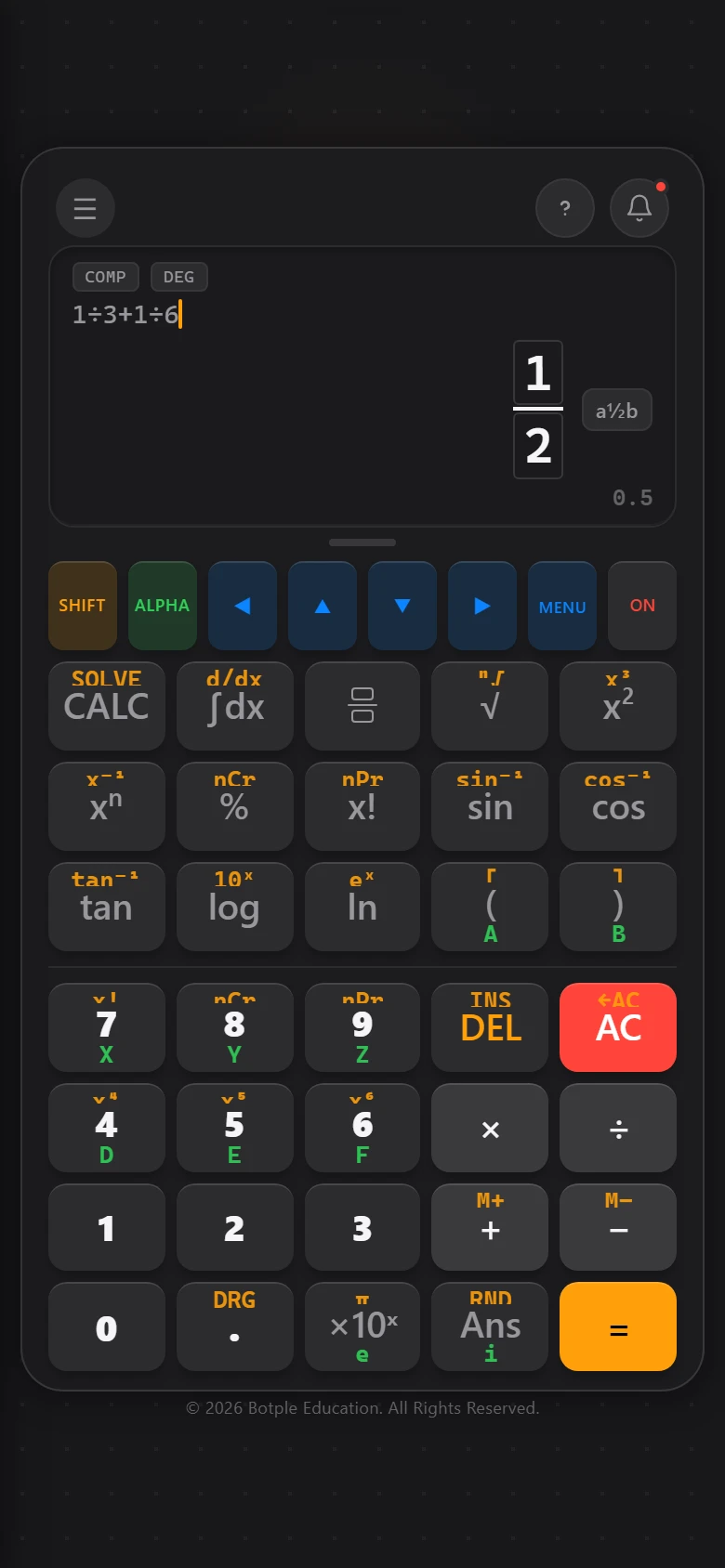
Botple Calc 显示二分之一的精确分数结果,分数以真实的方框形式高亮显示

1自然显示,分数与根号

分数、根号和指数都会以真正的方框记号显示——分数是分子在上、分母在下,根号会把数字显示在根号线下方。直接点击高亮的方框内部,光标就会移动到那里,就像在纸上写字一样。
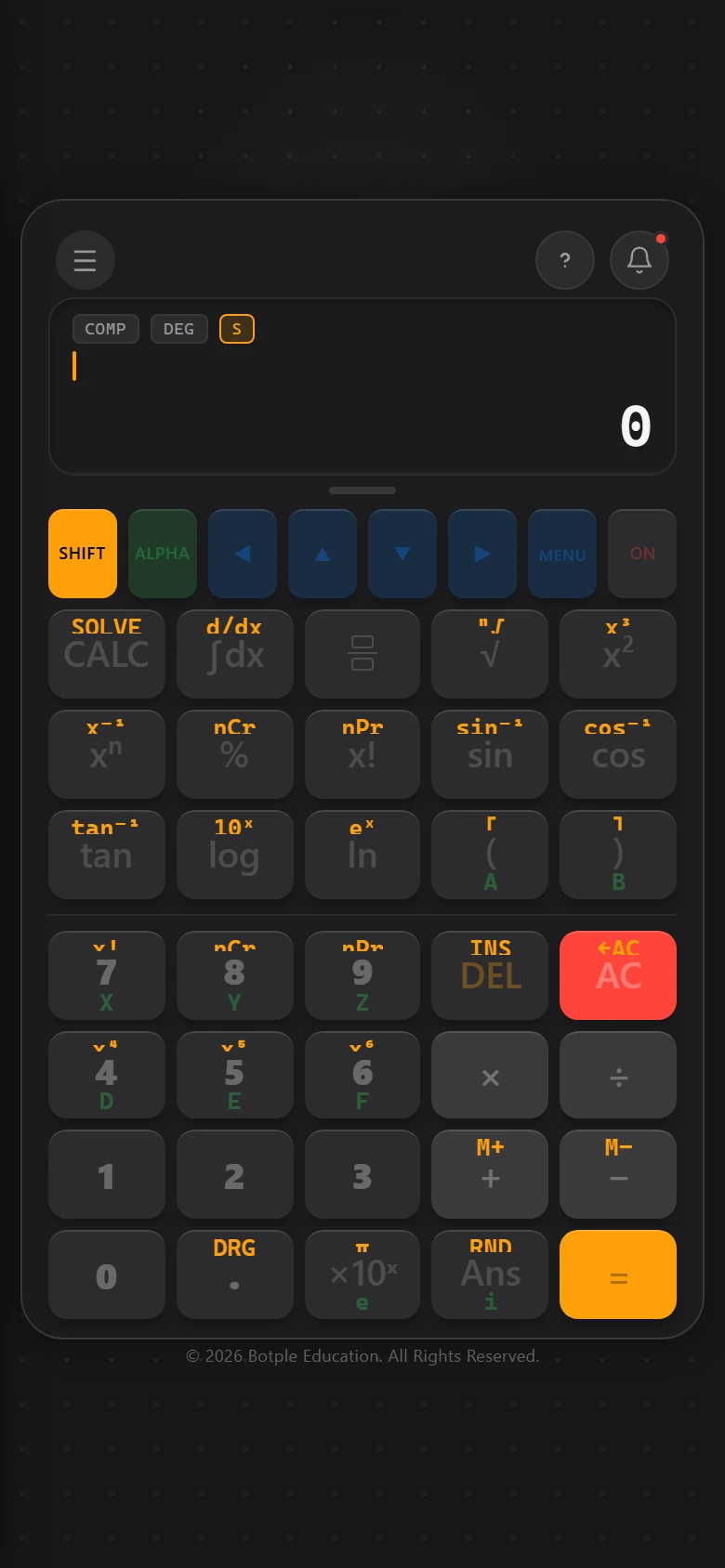
Botple Calc 中 SHIFT 处于激活状态,键盘上 SHIFT 和 ALPHA 键都被高亮显示
1
2

2SHIFT 与 ALPHA

1 · SHIFT(金色)解锁按键的第二功能——SHIFT 激活时,对应标签会变成金色。2 · ALPHA(绿色)让你输入变量名称,例如 X、Y,或 A 到 F。
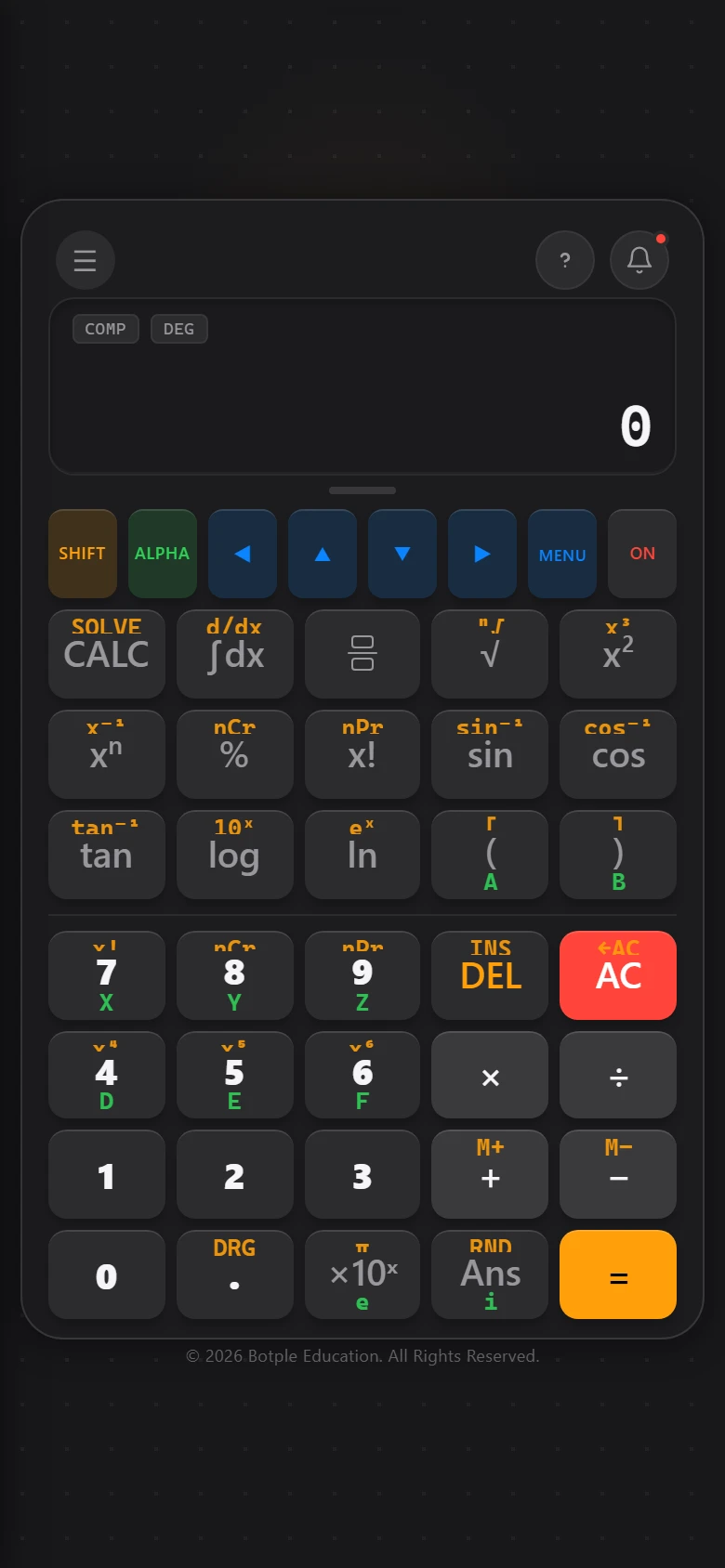
Botple Calc 主键盘,CALC 键被高亮显示

3CALC

用字母作为占位符输入公式——例如 X+2——然后按下高亮的 CALC 键。它会依次询问每个未知值,并帮你解出公式。回答之后,这个值(STO)也会被记住,供之后的计算使用,直到你在设置 → 清除变量中清除它为止。
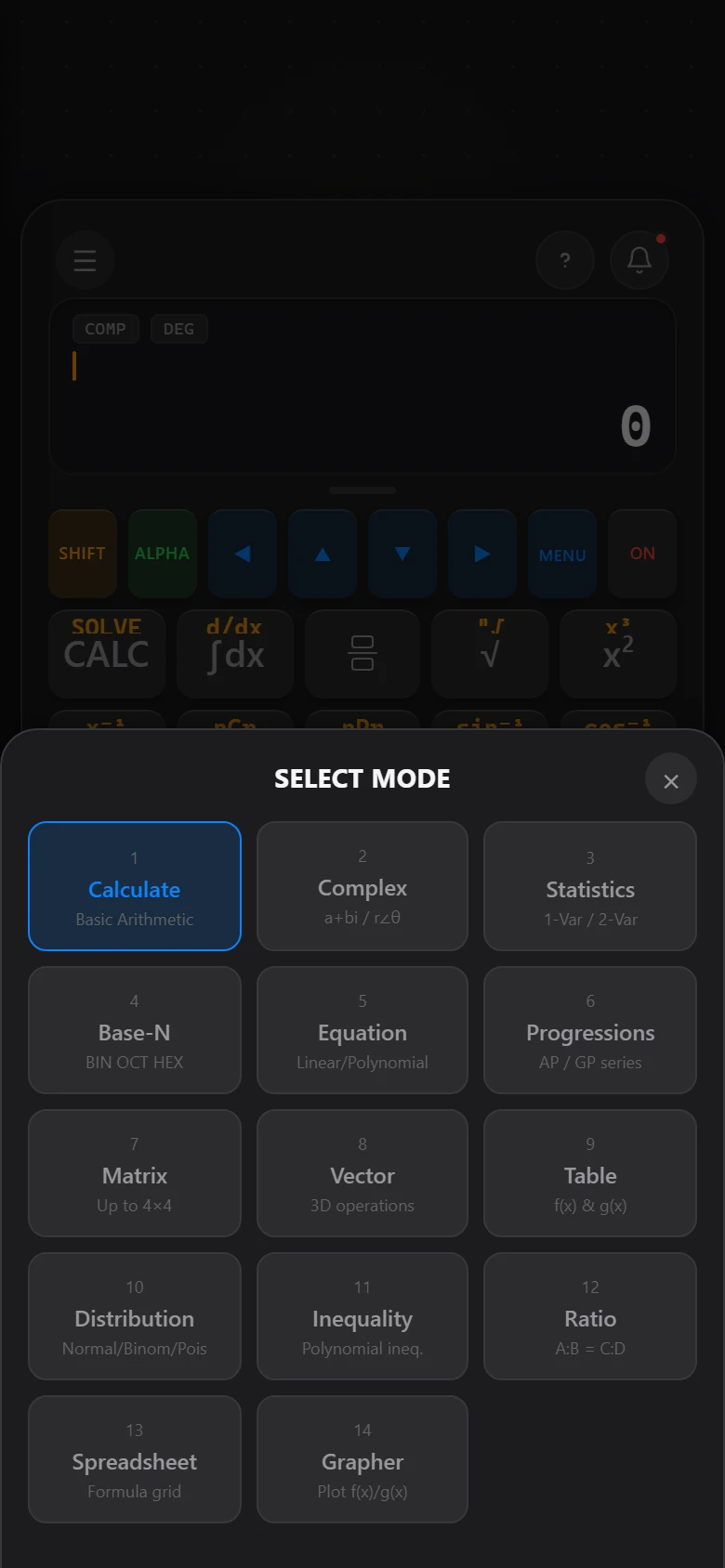
Botple Calc 的模式菜单,以网格形式显示全部十三种计算器模式

4模式

按 MENU 切换模式:矩阵、向量、统计、进制转换、方程求解器、不等式求解器、分布、数列、表格、电子表格,以及函数绘图器——总共十三种模式,全部在同一个应用里。
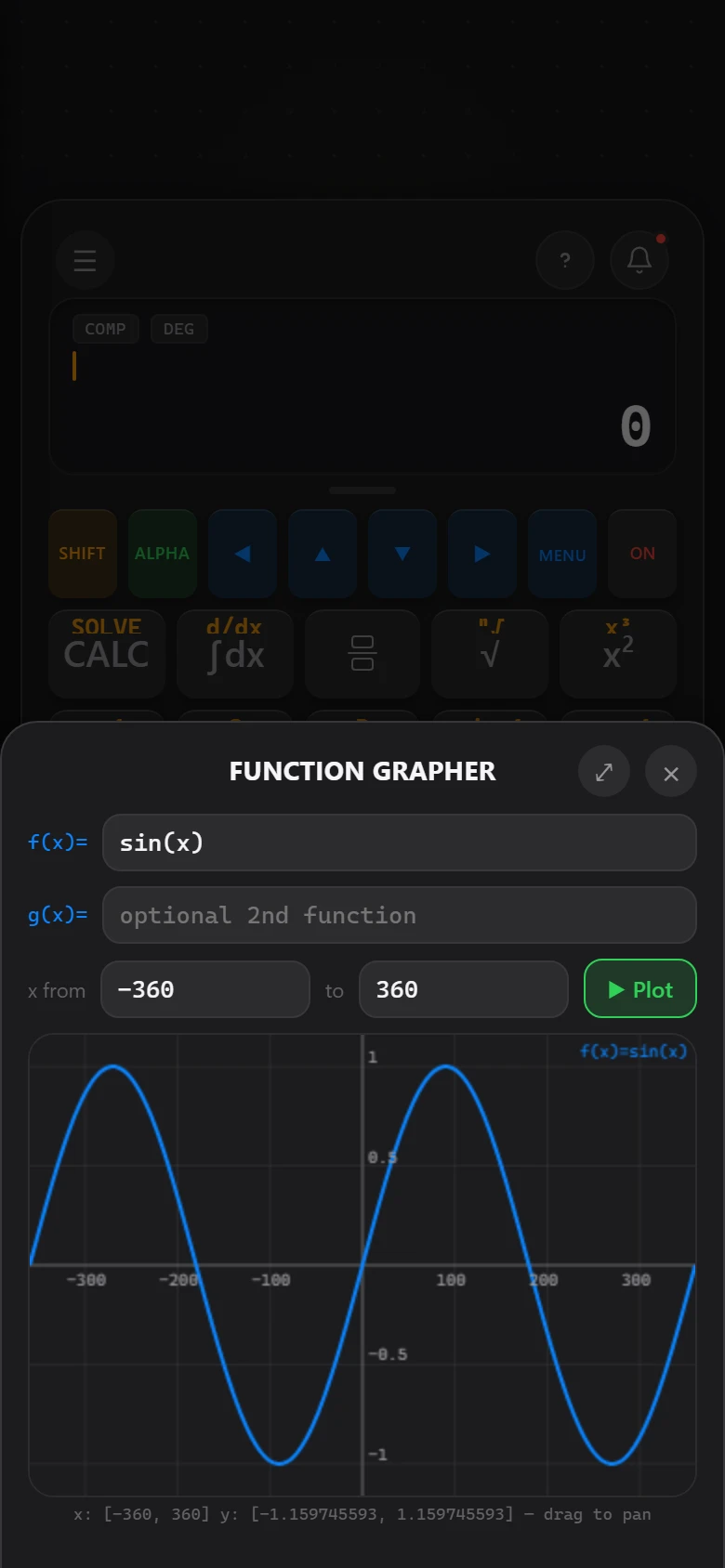
Botple Calc 的函数绘图器,正在绘制一条正弦曲线

5其他主要功能

精确分数计算引擎(所以 1÷3+1÷6 会显示真正的 1/2,而不只是小数)、常用公式书签列表、计算历史记录、离线手写识别(可以直接手写输入表达式,即 Write 模式),以及定积分 / 导数计算器。

安装伯乐应用

伯乐的应用都是可安装的网页应用(PWA)——不需要应用商店。这个方法适用于任何伯乐应用,不只是 Calc。下面的步骤,和 Botple Calc 应用内部的安装指南是一样的。

iPhone 与 iPad

1
在 Safari 中打开应用,点击工具栏中的分享图标。
2
向下滚动,点击添加到主屏幕。
3
点击右上角的添加确认。应用图标现在会以全屏方式打开,不会显示 Safari 的地址栏。

Android

1
在 Chrome 中打开应用,点击右上角的⋮菜单。
2
点击安装应用(有些设备会显示为「添加到主屏幕」)。
3
在确认弹窗中点击安装。部分设备会自动弹出这个提示,效果是一样的。

桌面端

在 Chrome 或 Edge 中,留意地址栏里的安装图标(通常是一个带箭头的小屏幕图标),或者打开浏览器菜单选择安装应用。安装后,应用会在独立窗口中打开,与你平常的浏览器标签页分开。

常见问题

Botple 是免费的吗?

是的。Botple Notes 和 Botple Calc 都可以免费使用,没有付费版本,也没有会到期的试用。

有广告吗?

没有。两款应用和本网站的任何地方都没有广告网络,也没有赞助内容。

我的练习卷会被上传吗?

不会。Botple Notes 在你自己的浏览器、你自己的设备上打开文件。它永远不会被发送到服务器——这也意味着除了你之外没有人有副本,所以在截止日期前,请把重要的东西导出保存好。

伯乐会收集数据吗?

两款应用和本网站都没有运行任何分析或跟踪代码。两者都把你的工作保存在你自己浏览器的存储中,而不是服务器上。唯一会离开你设备的,只有你主动通过反馈表单提交的内容,以及在有网络时一次很小的匿名更新检查。

支持哪些设备和浏览器?

两款应用都能在任何现代浏览器中使用——手机、平板和桌面上的 Safari、Chrome、Edge 和 Firefox。iOS/iPadOS 的 Safari、Android 的 Chrome,以及桌面版 Chrome/Edge 都支持安装成应用。Botple Notes 另外还有 Windows 安装程序。

它们能离线使用吗?

可以,只要各自加载过一次——具体涵盖哪些内容,请看下面一节。

MindSight 什么时候能用?

MindSight 仍在开发中,没有确定的发布日期。它自己的页面上有诚实的进度说明。

伯乐是谁做的?

伯乐教育是一个规模不大、独立运作、由学生主导的项目——不是公司。完整故事请见"关于我们"。

哪些功能可以离线使用

Botple Notes

真正重要的部分全都可以。页面加载过一次之后,打开练习卷、填写、在上面绘图以及导出,在完全没有网络的情况下都能正常工作——因为这些本来就不需要服务器。语音笔记转写和保存到 Google 云端硬盘是例外,这两项需要联网。

Botple Calc

在必要的应用资源被缓存之后,核心计算功能无需联网即可使用。依赖远程服务的功能可能需要网络连接。

还有问题?

如果这个页面没有解决你的问题,发送反馈给我们——问题报告和疑问都可以发到同一个地方。